
Screenshots
Screenshot app for Mac with annotation
ScreenCameo includes a full screenshot app. Capture an area, a window or the whole screen, mark it up with 19 tools, make it presentable, pin it or copy its text. It comes with your ScreenCameo license, with nothing extra to buy.
- Option + Shift + 4 Screenshot an area or a window
- Option + Shift + 3 Screenshot the full screen
- Option + Shift + 2 Copy text from anywhere on screen
Capture
Capture an area or a window on a frozen screen.
Press Option + Shift + 4 and the screen freezes, so menus and hover states stay put. Drag an area, or click a window to capture just that window. Option + Shift + 3 takes the whole screen.
- A thumbnail offers Copy, Save, Annotate and Pin right away.
- Repeat Last Screenshot grabs the same area again; a 1 to 10 second delay is one setting away.
- Every screenshot is kept in Home → Screenshots.
Annotate
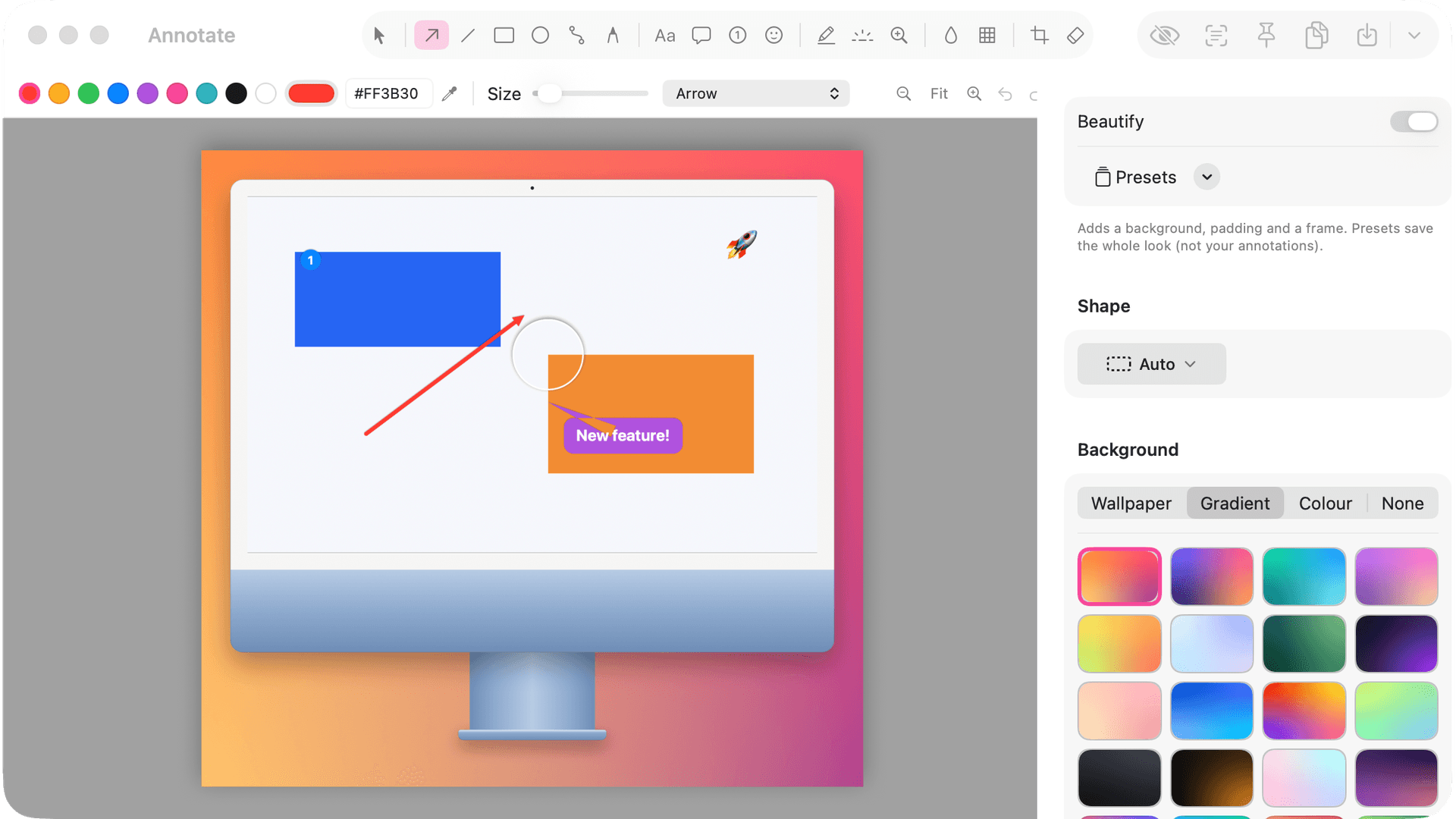
Mark up any screenshot with 19 annotation tools.
Every tool has a single-key shortcut, so explaining something takes seconds. Arrows bend, counters renumber themselves, and blur hides what's private.
- Arrow 1
- Rectangle 2
- Filled rectangle 3
- Ellipse 4
- Line 5
- Blur 6
- Pixelate 7
- Highlighter 8
- Text 9
- Counter 0
- Select V
- Path G
- Emoji J
- Callout C
- Eraser E
- Magnifier M
- Pencil P
- Spotlight S
- Crop K
- Styles per tool. Single, double or open arrows; sharp, curved or round corners; six text styles from Rounded to Outlined.
- Any color. Pick a swatch, type a HEX code, or press Tab to sample a color from anywhere on screen.
- Precise edits. Hold Shift for straight lines and perfect circles; nudge by one pixel with the arrow keys.
- Cut a strip. Hold Shift while cropping to remove a horizontal strip, and everything below moves up.
- Magnify and spotlight. Enlarge a tiny detail, or dim everything except the part that matters.
- Edit several at once. Shift-click or drag to select annotations, then move, duplicate or delete them together.
Beautify
Make any screenshot presentable in one step.
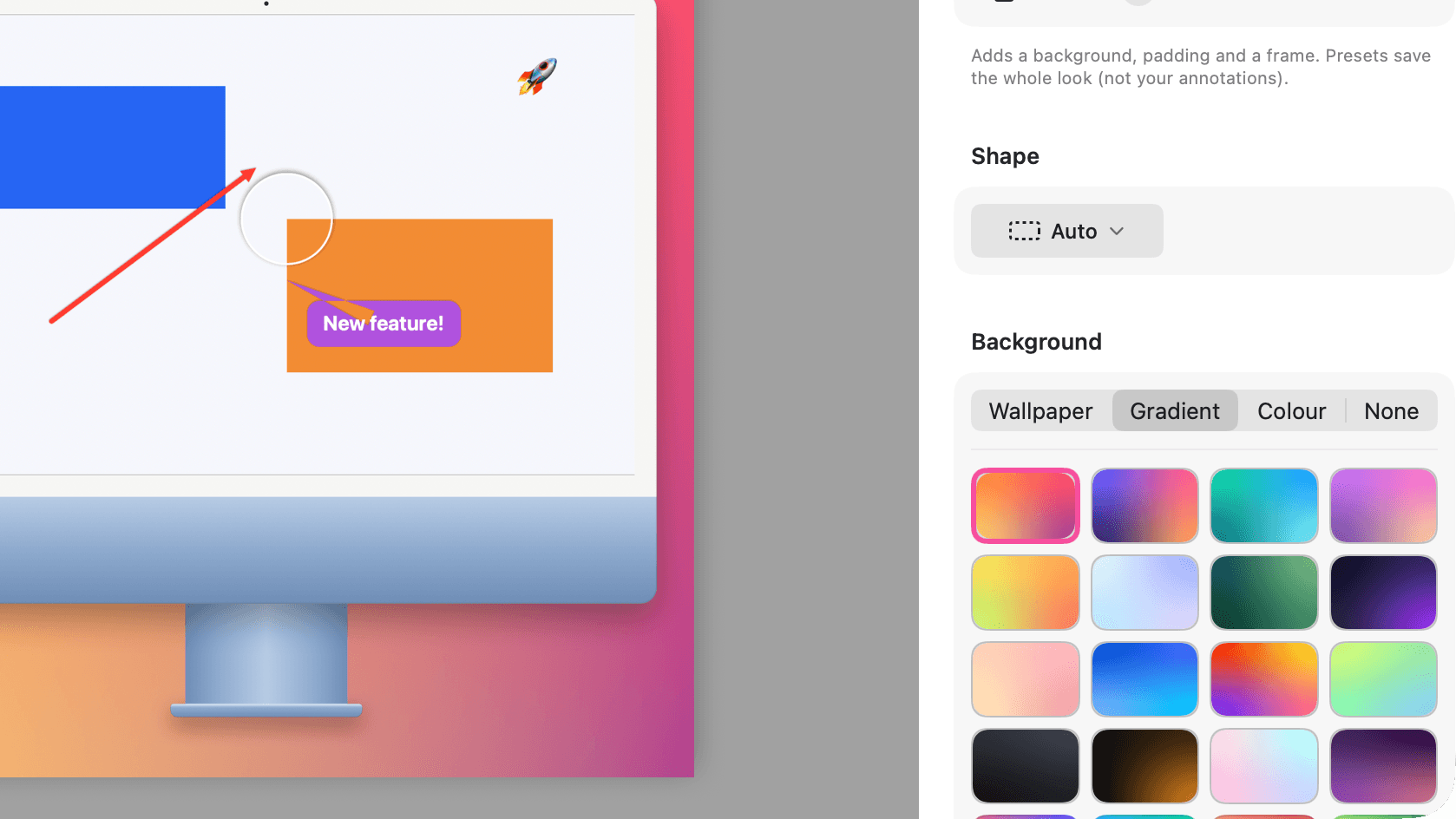
Beautify puts your screenshot on a background with padding, rounded corners and a soft shadow, and shows the finished image as you adjust it.
- Exact sizes for where it's going, such as Open Graph 1200 × 630 or Instagram Portrait 1080 × 1350.
- Wallpapers, gradients, a solid color, or a transparent background.
- Device frames: MacBook, iMac, display, iPad, iPhone, Safari or a window.
- Save a look as a preset and reuse it in one click.
Pin, copy text, redact
Pin a screenshot, copy its text, and hide what's private.
Pin keeps a screenshot floating above your windows while you work from it. Copy Text lifts the words out of any screenshot, and Option + Shift + 2 copies text from anywhere on screen, even from a video or an app that won't let you select it.
Redact finds emails, API keys and tokens and hides them automatically before you share.
Save and share
Copy it, save it, or send it in the format you need.
- Copy in one keystroke. Cmd + C copies the finished image, ready to paste into Slack, a doc or an email.
- Every common format. PNG, JPEG, HEIC and TIFF, plus WebP and AVIF on Macs that support them.
- Your shortcuts, your way. ScreenCameo uses Option + Shift so Apple's own shortcuts keep working. Change any of them in Settings.

Capture it. Mark it up. Make it shine.
ScreenCameo launches soon at $59, paid once. Join the list and you'll get one email on launch day, nothing else.
macOS 26 or later · Up to 3 Macs · 30-day refund